Previsualize the Flow: Composer v0.6
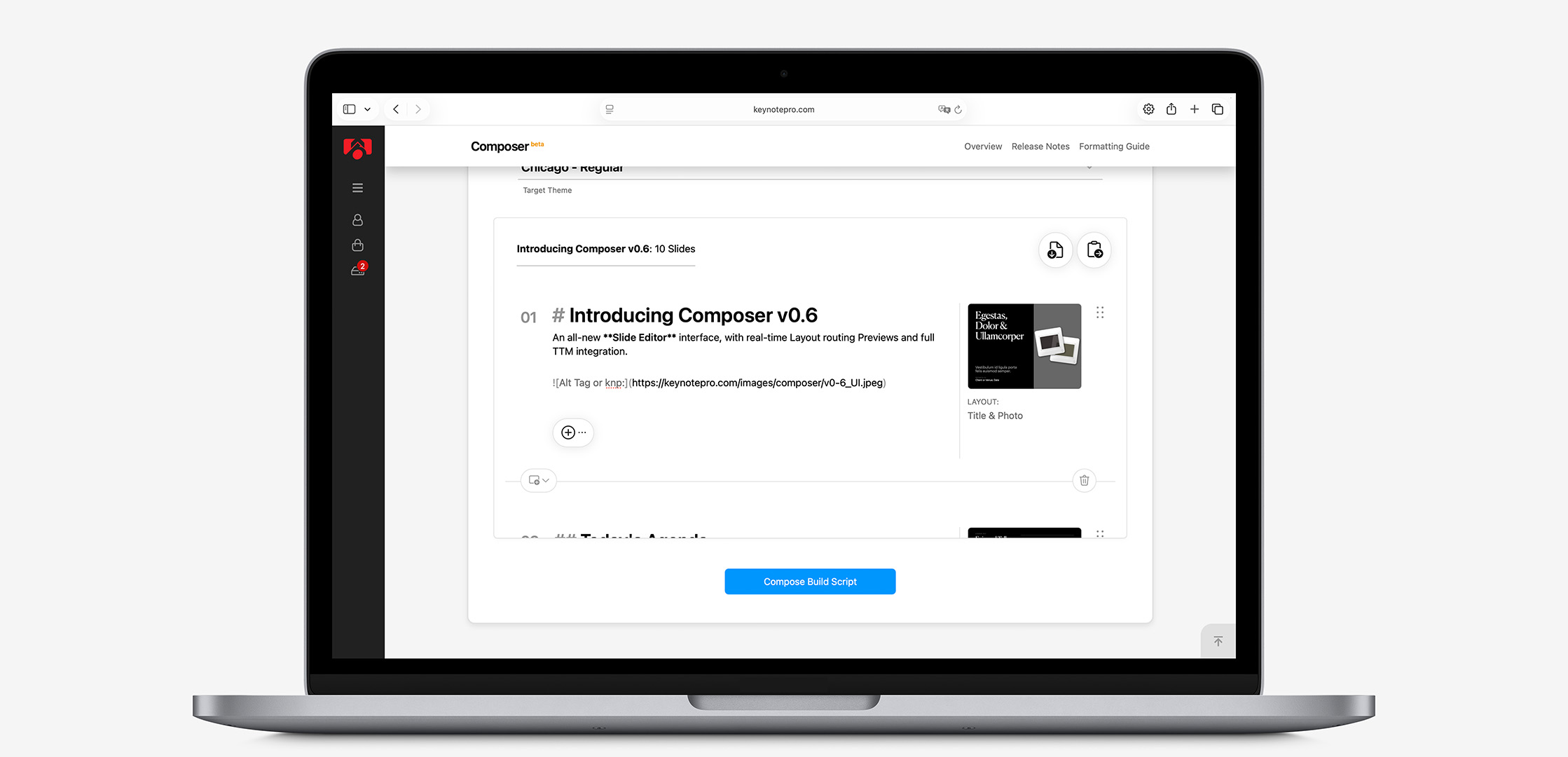
We're rolling out a new Slide Editor UI in Composer v0.6 that makes it even easier to author Composer-flavored Markdown scripts, with real-time Routing Previews and TTM-aware Object and Layout insertion baked right in.
When we originally launched Composer, we'd put the vast majority of our focus on simply getting the toolchain running in the first place: the Mess of Windows that came to exemplify the Composer v0.5 experience. The original form-based interface proved that a structured authoring workflow could dramatically accelerate presentation creation, but otherwise left you to your own devices when it came to the actual authoring of complex slides or shows, and stuck in a rebuild loop whenever expectation didn't meet output.
Today, we're introducing a new Slide Editor UI – a purpose-built authoring interface designed specifically for writing and editing Composer-flavored markdown.
The Slide Editor replaces the generic form field input of Composer v0.5 with a dedicated editing environment that understands precisely how Composer interprets markdown signals. Real-time Routing Previews show exactly which Layouts are being indicated in your chosen theme, while built-in Theme Target Manifest (TTM) awareness makes inserting objects, tags, or entire layouts faster and more accurate than ever before.
Whether you're new to the idea of writing out your shows in markdown or you're a seasoned Composer veteran, the new Slide Editor should help you to write faster, see results sooner, and spend less time managing syntax along the way.
From the Top
The secondary Compose from Scaffold route has been entirely discarded in the transition to v0.6, fully superseded by the new, unified Compose from Markdown pathway: the updated flow inherits some of the useful artefacts of the old Scaffold pathway, but in a way that's more integral to the essential workflow and far more adaptive in scope.
Rather than copying your script in from another application, you can now drag your markdown files in directly from Finder to get started – or start with one of the expanded Starter Templates in the pop-over library. You can otherwise click on Start with a New Slide to insert a basic Title slide and move directly into writing your show: if you prefer the old paste-in methodology, simply highlight everything on that Title slide, and paste to replace it with your script as usual.
When you import a markdown script, the Editor immediately moves into mapping and previsualizing your show, splitting it into logical slide segments and mapping any non-specified Layouts to their calculated routes: a sort of "lite" version of what's happening on the backend when your show is submitted for Build.
Pre-Build preview of a 10-slide Markdown presentation in Composer's new Slide Editor.
Coming from Composer v0.5, the most obvious benefit of the new approach is that you can spot potential issues before you ever move onto Build: this is a preview of expected output from the engine, and should closely mirror Composer's internal routing and decisioning, so you'll have an immediate sense of how Composer's interpreting your markdown before you ever submit the script for Build and begin the handoff to Keynote.
Likewise, if you're new to authoring shows in markdown, or simply drafting out your show natively in Composer's interface, the Editor UI should help to remove some of the guesswork when it comes to formatting conventions or specific slide syntax, and provide a much better sense of immediacy around the actual impacts of your edits as you're making them.
For instance, let's Start with a New Slide, which will insert a default Title slide setup to get us going. Tapping the Insert Element button will reveal additional object types that can be added to the current slide, which are surfaced in context of what's already present on the slide – so to add an Image to your Title slide, you'd simply tap Insert, then Image, and select the type of Image markup you'd like to add:
Insert Element offers contextualy-relevant options, and handles basic markdown formatting for you.
The routing change is immediately visible, and the specific markdown convention for the selected image type is inserted for you automatically, ready for you to edit as easily as the Title or Subtitle above it. The Insert New Slide button follows a similar premise, and will insert markdown placeholders for all of the relevant items that constitute the layout you select:
Insert Slide adds a fully-formed placeholder equivalent of the selected slide, ready for edit.
All of this happens in context of which Target Theme selection you're working in: the all-purpose Generic/Classic target will offer up basic object types and the standard slides from the Global Standard Routes pool, while targeting a KeynotePro theme or Custom theme target will surface options relevant to the particular theme you're working with.
Manifest Destiny
Some of you are already familiar with the Theme Target Manifest (TTM) utility script in Composer's Preflight panel: if you've never used it before, it's a helper utility that creates a map of what AppleScript "sees" on each slide of a target theme, and is a big time-saver if you're scripting out complex, multi-item layouts.
Previously, if you were working on a script using the TTM output for your target theme as a reference point, you'd need to do a bit of a search to find the correct segment in the output markdown – after getting the Layout name itself from a separate Keynote window – and copy that segment to your working file before you could ever get down to writing the slide.
In Composer v0.6, TTM references are deeply integrated into the Editor itself – making it easy to add that scaffolding to your script automatically. So if we run that sequence again using Chicago as our designated target, we'll have a much wider selection of Slides to pull from, with familiar Layout icons to make it easy to find the specific setup you're after:
Insert Slide adapts to your active Target Theme, inserting theme-specific targets and placeholders.
The updated TTM v1.6 format includes placeholder text in-sequence with each Placeholder or Sub-target tag picked up by the script, making it easy to highlight and replace any item on the layout, and providing additional clarity to the markdown structure.
It should be noted here – the Layout previews on KeynotePro themes are currently pulling from the "View All Layouts" imagery tied to each theme's main page in the Library, so you'll get the "default" variant of each theme system in the Layout Preview regardless of which variant you choose atm: Chicago Sans targets will display Chicago Regular previews, for example. We'll need to build out a bit of additional infrastructure to get the previews fully synced on variant level, so in the meanwhile the Theme Selector will display a highlight label whenever we're falling back to the default variant for display.
And we obviously don't have image references at all if you're building to a Custom theme target: you'll need to know your layouts by name in the Insert selector. But you can attach your Custom Theme TTM to the Editor to leverage the same functionality as it relates to your Custom Theme: we recommend saving a new version of the TTM from your Custom Theme using the v1.6 script to fully align with the updated behavior.
Attach a TTM file generated from your Custom Theme to surface relevant layouts in the Insert flow.
And as many of you have already discovered, a TTM file is also a useful bit of kit to have on hand if you're trying to teach ChatGPT, Claude, or other LLMs how to optimize script output for Composer integration: it's essentially a "schema" those platforms can use as a reference for which layouts will surface for a given theme, or the addressable objects any of those slides contain. We're currently working out a few additional bits of infrastructure and prompt support that should help to codify this a bit more formally and make this kind of integration simpler all around: we'll have additional information on that front coming soon.
Guardrails Ahead
While this is all a big leap forward for Composer's overall flow, it's still very much a work-in-progress at this stage. You can drag in a script and get an immediate sense of Build output – but that's assuming your script is essentially tuned for Composer already, and doesn't include contraindicated elements on a slide, for instance, or markdown structures more appropriately targeted to an HTML-based slideshow platform (which LLMs tend to generate as default).
The Editor UI won't currently indicate these sorts of issues as they're encountered in the Preview flow – it maps your script to the level that it can understand it, and largely ignores the rest. So it's entirely possible to script up issues that won't be apparent until an AppleScript error appears during the actual build-out in Keynote.
Coming iterations of v0.6 will work toward highlighting potential issues on the import or as they're typed: in the meanwhile, if you're ever in doubt, Insert a fresh version of the slide in question to your script and ensure you're following the formatting indicated by the TTM.
On the Horizon
We designed Composer v0.6 as a sort of "soft reboot" of the workflow's fundamentals – principally around making Composer easier to use for novice authors, while also providing our power users with a more-informed, streamlined process that would ideally break the build > edit > rebuild cycle dramatically (if not entirely).
And we did that with an eye toward how we might standardize our approach toward closing additional gaps in the functional Roadmap – which is to say we should be better positioned now to see a bit of forward momentum on Audio, Video, and Chart specifications, among other fills that have remained on the back-burner over this past year.
More to come on all of these fronts as we have it – as always, continue to loop us in if you encounter any oddities in the new kit.
Additional Resources